
How do you install DJ NIMI Traktor Suite on a Mac?
A practical installation guide for DJ Nimi’s free experimental Traktor helper: compatibility, backups, permissions, first tests and restoring changes.
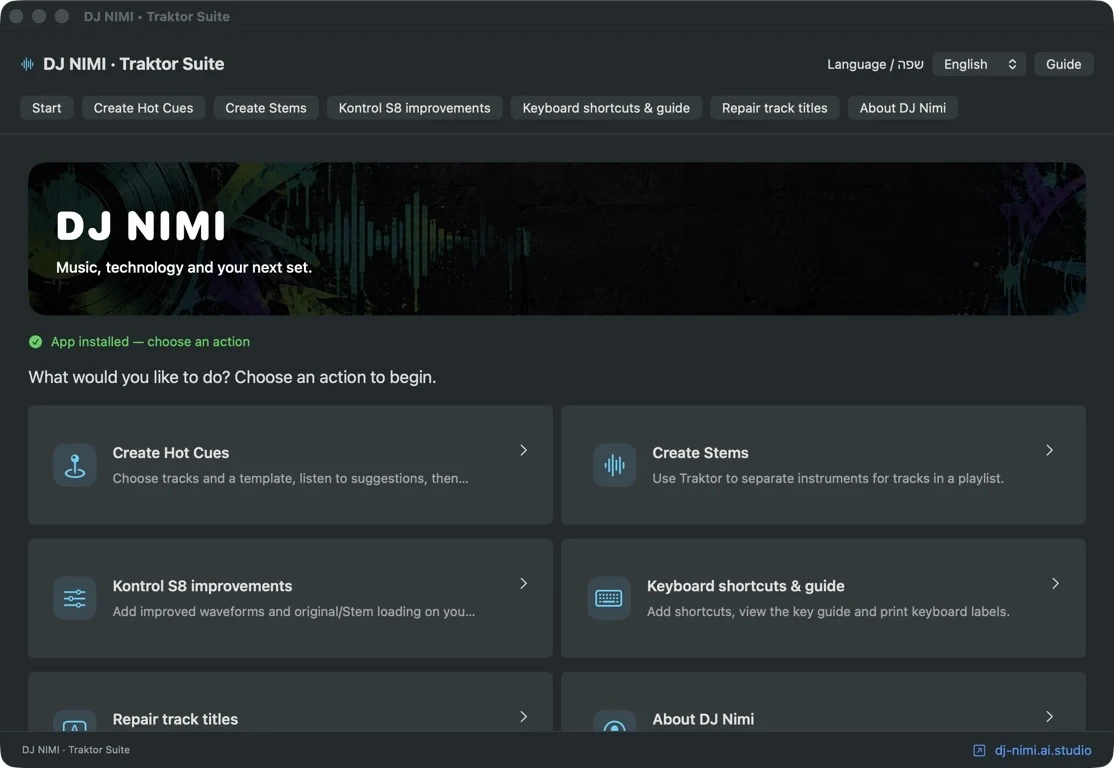
DJ NIMI Traktor Suite is a free, independent Mac utility for preparing a Traktor library. It brings cue suggestions, a native Stem-generation workflow, keyboard tools, selected title-display repairs and compatible Kontrol S8 resource patches into one interface. It does not include Traktor, replace its license, or promise a finished mix at the click of a button. The useful starting point is a small, reversible preparation task: choose a few tracks, inspect the proposed change, make a backup and listen to the result.
The current installer and system requirements are listed on the central download page. This guide describes the preparation workflow; button names and compatibility details can differ between releases. Before replacing an existing installation, close Traktor and keep independent backups of your collection, settings and installed modifications. Read the instructions included with the installer you actually downloaded. If you previously modified S8 resources, compatibility checks may detect differences in those files. Do not copy display resources between versions or bypass a failed check. Use the recovery procedure that matches your backup. Start with a few tracks outside a performance, check the results, and only then expand the change to your library. Installation alone does not prove compatibility with every computer or controller configuration. Keep the previous installer and its backup until you have finished evaluating the update.
What do I need before installing DJ NIMI Traktor Suite?
You need a Mac running macOS 14.2 or later and your own licensed Traktor installation. The application includes Apple Silicon and Intel executables, but compilation for both architectures is not the same as testing every computer. The supported Traktor resource baseline is Traktor Pro 4.5.1; the S8 patch checks exact files rather than assuming that every newer release is compatible. A failed compatibility check is a reason to stop, not to rename files until a check passes.
There is no Windows installer in this release. You do not need to install Python or run Terminal commands to use the packaged application. Choose the interface language from the language menu: Hebrew, English, Arabic, Simplified Chinese, Hindi, Spanish, Portuguese, French, German or Japanese. Interface translation does not mean that every script will render correctly in Traktor or on every hardware display. Those are separate font and text-layout questions.
Set aside preparation time when you are not performing or recording. Connect your music drive and make sure the relevant audio files are available locally. A track visible in a collection is not necessarily readable if its external drive is disconnected. Check free disk space before creating Stems; separated audio and temporary processing files consume storage. Start with a handful of familiar tracks rather than your entire library.
Which files should I back up first?
Keep an independent copy of your current Traktor collection, settings and important playlists before using any utility that writes to them. The collection is commonly represented by collection.nml, while settings and mappings are stored separately. Identify the files your current Traktor installation actually uses; old version folders can contain plausible-looking but outdated copies. Store the backup outside the folder you are about to change, with a date and a name you can recognize later.
The Suite creates backups for its supported write operations, but those backups are not a replacement for your own recovery plan. Restoring an old collection can also discard newer work made after that backup. If you prepare cues, then edit a playlist, then try to undo the earlier operation, the later changes matter. The application checks for changed files and may refuse a stale restore. That refusal protects work it cannot safely reconcile automatically.
A sensible first test uses three known tracks: one without assigned Hot Cues, one with cues you want to preserve, and one with a title that already displays correctly. You can compare before and after behavior without guessing what the library looked like yesterday. Keep a short note of the selected file, chosen action, backup location and result. This is more useful for troubleshooting than repeatedly applying several unrelated changes.
How do I install the Mac application?
First, read the experimental-release notice beside the download and acknowledge that you understand the risks. Download the disk image from the central download page, open it in Finder and copy DJ NIMI Traktor Suite into Applications. Launch the copy in Applications rather than relying on the application inside the mounted disk image. This also gives macOS a stable application location when you later review permissions. Keep the disk image until you have checked the installed version and completed a small test.
This package is ad-hoc signed and is not notarized by Apple. macOS may prevent it from opening. Do not disable Gatekeeper for your whole computer, run an unknown security-removal command, or ignore a malware warning. Review the source and the warning. If you decide you trust this experimental release, consult Apple's current instructions for opening an identified app through Privacy & Security. A checksum can confirm that a download matches the published file; it cannot prove that software is safe.
On first launch, read the application's own notice as well. Installing the Suite does not automatically install every keyboard mapping, repair every title or alter every track. Select one function from the start screen and follow that function's prerequisites. The screenshot shows the English interface; your selected language changes the labels, while the preparation-first workflow remains the same.
Should Traktor be open or closed?
For operations that change the collection, settings, mappings or application resources, close Traktor before saving. Otherwise Traktor can still hold an older copy in memory and later write its own state back to disk. Reopen it after the change and verify the intended result. Do not mistake closing a settings panel or stopping playback for quitting the application.
Stem generation is the important exception. The helper uses Traktor's native generation workflow, so Traktor must be running, with all decks stopped, Cruise disabled and recording stopped. Clear search, select only the first track in the intended playlist and enter the exact visible track count. Keep Traktor in focus while requests are sent. Switching apps stops new requests; the Suite does not recognize or verify the selected row. Stopping the helper does not necessarily cancel a native separation job that Traktor has already accepted.
Why does the Stem helper ask for permissions?
The integrated Stems tool uses Accessibility permission to send keyboard commands to Traktor. Allow DJ NIMI Traktor Suite under Accessibility in macOS System Settings. Screen Recording permission and a separate helper app are not required. These instructions apply to the integrated tool; older instructions for screen recognition describe a different workflow. After granting access, test the shortcut on a single track before sending requests for a longer playlist.
Traktor processes the music locally; you do not need to upload it to DJ Nimi or create a Suite account. Check the keyboard mapping, playlist selection and entered row count before starting. The default interval is one second between requests, and the counter measures requests sent rather than completed files. Rows with existing Stems are included, so Traktor may regenerate them. Stopping the Suite does not necessarily cancel jobs already queued in Traktor.
Which feature should I try first?
For Hot Cues, select a small set of tracks with a valid single beatgrid and preview the suggestions before saving. Keep-existing mode fills available slots; replacement mode can remove assigned cues and assigned loops. Neither mode can understand your intended mix as well as listening can. Check phrase starts, quiet introductions and track endings instead of accepting every suggested position because it lines up with a grid.
For Stems, first install the required basic shortcut mapping using the application's preparation instructions. Then open Traktor, clear search, select only the first playlist row and enter the exact number of visible tracks. Start with a small list and leave Traktor untouched while the requests are sent. The Suite coordinates native separation; it does not supply a different separation model or guarantee cleaner vocals. Audition completed tracks and keep the original available when separation artifacts make a transition sound worse.
For text display, check font coverage before converting any title. Missing characters, reversed Hebrew letters and disconnected Arabic letters are different problems. The repair workflow changes supported TITLE values in the collection, not the underlying audio filenames. A repaired display string can behave differently in search or later metadata synchronization. Leave titles that already display correctly untouched, and use the Arabic display test before attempting a broader conversion.
For keyboards and S8 resources, read the change preview carefully. The basic keyboard workflow and the optional performance profile do not have identical replacement behavior. The performance profile replaces existing keyboard mappings; it is not a harmless extra layer. S8 resource patches require their exact compatible files. A successful software check does not prove that your complete controller, audio interface and live-session setup has been tested.
How do I know that installation and preparation worked?
First verify that the application opens from Applications and that the expected version is shown in its bundle information. Then run one small preparation action. Reopen Traktor where required, load the tested tracks and inspect the result in the actual browser and deck. For cues, listen across the chosen marker. For title repair, search for the track again. For Stems, load the generated version and compare it with the original at sensible listening levels.
If something differs from the preview, stop expanding the batch. Record the specific action and message, preserve the backup and check that you used the intended collection and settings. Do not solve an uncertain result by repeatedly rewriting the whole library. A good first session ends with a result you can explain and reverse, not with the largest possible number of changed tracks.
How do I restore changes or uninstall the Suite?
Use the matching restore action and backup for the operation you performed, with Traktor closed where required. The application can refuse restoration when files have changed since the recorded operation; do not overwrite those later edits casually. The earlier package may be needed to restore an earlier resource patch because backup validation uses the patch identity. Keep versioned installers together with their relevant backups.
Removing the Suite application does not automatically undo changes already written to Traktor. Restore the intended settings, collection or resource changes first if that is your goal. An optional font installed for your user account is also separate: restoring a font preference does not remove the font file. Review it through Font Book if you no longer need it. Remove the Suite’s permissions in System Settings when appropriate, and retain independent backups until you have verified your normal workflow again.
DJ Nimi shares this tool to make preparation more approachable, especially where repeated manual actions interrupt the musical work. Treat the Suite as an assistant to a deliberate workflow: prepare, preview, back up, apply and verify. It is experimental software provided as is, without a promise of compatibility, uninterrupted operation or recovery. Use it at your own risk, away from a live performance, and keep the final musical decisions with your ears.
Sources and listening
Questions and answers
Is DJ NIMI Traktor Suite free, and does it include Traktor?
The experimental Suite download is free. It is an independent, unofficial utility and does not include Traktor or its license. Obtain Traktor separately from Native Instruments.
Does DJ NIMI Traktor Suite work on Windows?
This release is for macOS 14.2 or later. It includes Apple Silicon and Intel executables, but not every hardware configuration has been tested. There is no Windows installer in this release.
Do I need Python or Terminal to install it?
No. Open the disk image, copy the app to Applications and launch that copy. This experimental package is not notarized by Apple; review any macOS warning and do not disable system-wide security protections.
Can I run it while playing a live DJ set?
No: use it for preparation before performing. Close Traktor before saving collection, settings or resource changes. Native Stem generation instead needs Traktor open with playback, Cruise and recording stopped.
Will uninstalling the Suite restore my collection automatically?
No. Removing the application does not undo previous changes. Use the matching backup and restore workflow first where appropriate. Restoration can be refused if the affected files have changed since the operation.
Does a backup guarantee that every change can be recovered?
No. Keep independent copies and test a small batch. A backup may not include later edits, and the Suite refuses some stale restores to avoid overwriting changes it cannot safely reconcile.



Comments, questions & ideas
Help shape Traktor Suite: what worked, what is missing, and what should improve? For bugs, include the app version, macOS, controller and steps to reproduce.