
How to fix Hebrew track titles in Traktor without losing your workflow
Separate font problems from text direction, preview a small repair, check searching and controller displays, and understand collection backups and restore safeguards.
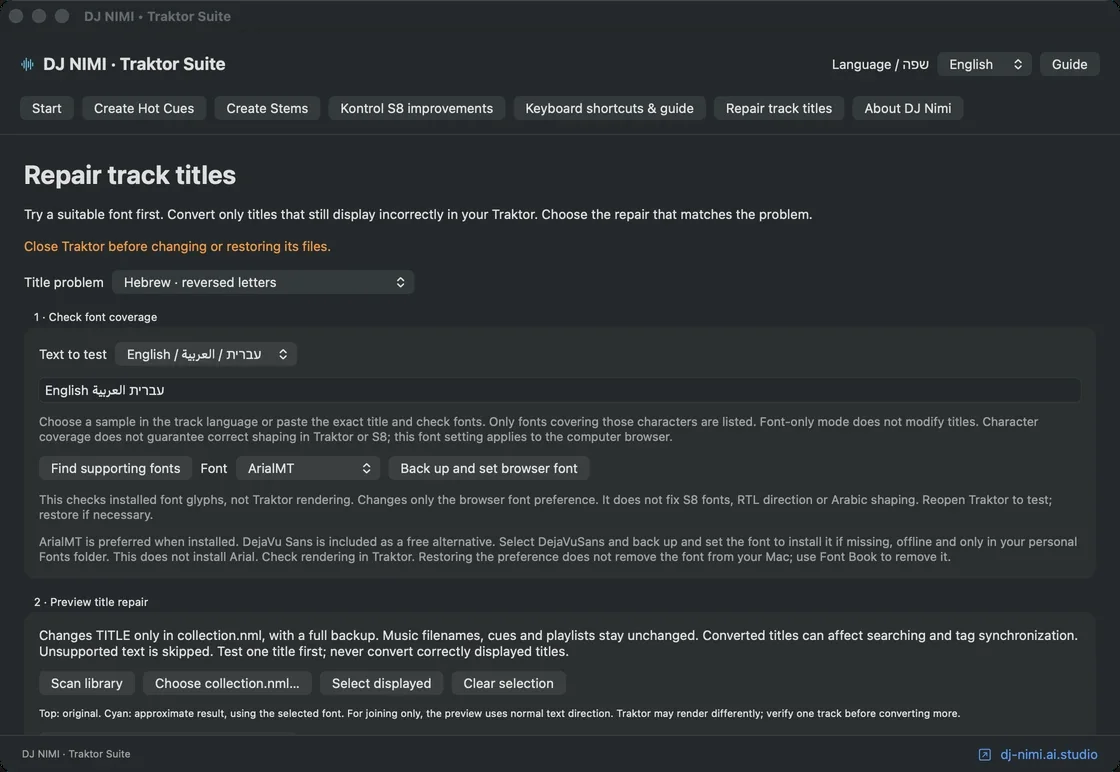
Why do Hebrew track names look wrong in a DJ library?
A Hebrew title can fail in more than one way. Missing letters or empty squares suggest a font coverage problem. Letters that are present but appear in an unexpected order suggest a direction or rendering problem. A mixed title containing Hebrew, Latin artist names, digits and brackets adds another layer of complexity. Before changing your music library, identify the symptom on the actual screen where it occurs. A title that looks correct in one application can look different in another, so a screenshot from a file manager is not a complete test of Traktor's browser.
DJ NIMI Traktor Suite separates font choices from title repair because those operations solve different problems. A font supplies the shapes of letters; it does not automatically guarantee correct right-to-left layout in every interface. Title repair changes selected title metadata for a particular display workflow. It is not a translation service and does not change the language of your music. DJ Nimi's recommendation is to preserve names that already look correct, test only a few affected tracks and expand the repair only after you understand what changes in your own setup.
How do you distinguish missing glyphs from reversed text?
Choose a short Hebrew-only title and another title that contains both Hebrew and Latin text. Look at whether each letter is recognizable, whether the words read in the intended order and whether numbers remain readable. If letters are replaced with boxes, first choose a suitable installed font for the computer browser. The Suite prefers Arial when it is available and offers an optional bundled font, but font selection is a separate decision from converting title order. Check the actual characters you use, including punctuation, instead of assuming that one sample proves every title will display correctly.
If the letters are visible but the title reads backward, investigate direction handling. Do not fix a display problem by repeatedly reversing the whole string in unrelated tools. Mixed-direction titles need more care than a character-by-character reversal: a Latin artist name, a year or brackets may need to retain their internal order. The Suite's Hebrew conversion uses text layout information to construct a visual form and applies checks before accepting a change. This remains a targeted workaround for affected displays, not a universal improvement to standard Unicode metadata across all software.
What does the Hebrew repair actually modify?
The repair updates the TITLE attribute of selected entries in Traktor's collection file. It does not rename your audio files, rewrite the audio signal or deliberately change cue points and playlists. This limited scope makes it easier to understand what is being altered, but the collection remains important data and needs a backup. The saved title is metadata used by Traktor. It is different from the filename shown in Finder and may differ from the title embedded in an audio file's tags. Keep those layers separate when diagnosing the result.
Changing a stored title can affect how you search and sort the library. A visual-order workaround may also look unusual in software that already handles right-to-left text correctly. Tag synchronization or a later import can bring another version of a title back into view. For these reasons, record the original and proposed title before applying a repair, and avoid applying the conversion to every Hebrew-looking entry automatically. The right target is a title that is demonstrably wrong in your intended Traktor display, not every track whose name contains Hebrew characters.
What should you back up before changing collection metadata?
Keep a separate copy of your collection and important settings before repair. Close Traktor before the Suite writes or restores its files, so Traktor cannot overwrite the result when it later saves an older in-memory collection. Confirm that you are working with the collection associated with the Traktor installation you actually use. A machine can have old version folders and previous backups, and choosing an obsolete file will not necessarily change the browser you open later. A clear file choice is more important than rushing through the first preview.
The Suite creates a backup and a receipt for the change, and checks that the source has not changed since preview. These checks help prevent writing a plan against a different library state. They do not replace an independent backup, and they do not mean you can freely edit the collection between repair and restore. Keep track of when the change was made and which collection was selected. If you later need assistance, the relevant before-and-after titles and the reported error are usually enough to begin diagnosis without sharing the entire collection.
How do you review a repair before saving it?
Open the title-repair section, choose the Hebrew mode and select the intended collection. Review the proposed before-and-after values for affected tracks. Start with a small set whose correct spelling you know. Include a simple Hebrew title and a mixed title if those represent the problem you face. Check words, digits, brackets and punctuation. A preview using a selected font is useful for inspection, but it is not a promise that Traktor's own renderer will behave identically. The final check must happen in Traktor after saving and reopening it.
Leave entries that already look correct unchanged. Some strings are deliberately rejected for manual review, including cases with unsupported mixtures or explicit direction-control characters. A skipped entry is a sign that the tool declined to guess, not an instruction to remove safeguards. If the preview is difficult to interpret, reduce the selection and compare against the original name in a trusted reference. Do not edit more tracks merely to make a progress count larger. A successful repair is a readable, searchable result for the tracks you need, with a known path back to the original metadata.
What should you check after reopening Traktor?
Find the exact test tracks and inspect their titles in the computer browser. Search for them using the words you normally type, and confirm that the displayed result is the intended entry rather than another copy of the same song. Then load a track and check any other display you rely on. The Suite's browser font choice targets the computer interface; it is not a font patch for a controller screen. A result on the Mac therefore does not establish that every connected device will display the same title correctly.
Listen briefly and check that your existing cue points and playlist membership are still where expected. The repair is designed to change only titles, so an unrelated discrepancy is a reason to pause and investigate the selected collection and any other changes made during the session. Compare a few untouched tracks as a control. Once the small test is clear, apply the same reasoning to another limited group. Gradual verification makes it easier to connect a visible change to a specific action instead of trying to diagnose hundreds of differences at once.
Why can the same name reappear after importing or synchronizing tags?
Your library can contain several sources of naming information: the Traktor collection, embedded audio tags, filenames and data imported from another application. A title repair in the collection does not automatically rewrite those other sources. If another workflow imports or refreshes metadata, inspect which source it uses before assuming that the repair failed. Reapplying conversion without understanding the source can create a cycle in which one tool writes a visual form and another restores standard text. Consistent library maintenance begins with knowing which program is authoritative for a particular field.
Keep a simple note of your chosen workflow. For example, decide whether you maintain canonical titles in audio tags while using a display-specific collection adjustment in Traktor. Test what happens when you reimport one track before repeating that operation across the library. If you use several DJ applications, check each separately. A workaround that helps one renderer can reduce readability elsewhere. The aim is not to make the metadata unusual for its own sake; it is to make the names you need accessible during preparation and performance without losing their original meaning.
How does restore work, and why might it refuse to continue?
Automatic restore checks that the current collection still matches the state produced by the repair and that the backup matches its recorded original state. If the collection has changed afterward, restore stops rather than replacing newer work blindly. This is important if you have added tracks, changed cues or edited playlists since the repair. A full older backup may still exist, but restoring it without considering those later changes could remove work you want to keep. Read the message and identify the change history before choosing a recovery method.
Do not bypass a mismatch simply because you want the old title back quickly. Preserve the current collection and the available backup while you decide how to reconcile them. A targeted manual correction may be more appropriate than replacing the entire collection, depending on what changed. Keep Traktor closed during file-based restoration and verify the result after reopening it. The tool's refusal is a boundary designed to protect newer information; it is not proof that your music files are damaged or that the backup has disappeared.
What is a sensible long-term workflow for Hebrew music libraries?
Maintain clear original names, use consistent metadata sources and keep independent backups. When a display issue appears after an update or a move to another computer, repeat a small diagnostic test before applying old assumptions to the new setup. Check the font, the stored title and the renderer separately. Avoid renaming audio files to compensate for a problem confined to one title column. Use the smallest change that solves the observed problem, then confirm searching, loading and everyday library work remain comfortable.
DJ Nimi built these preparation tools around practical friction in multilingual DJ libraries, but the Suite remains independent experimental software. The download section below explains use at your own risk and requires acknowledgement before revealing the installer link. Read the installation guide, keep your original collection and test a few tracks first. A successful repair should leave you spending less time decoding names and more time selecting music. It should also leave you able to explain what changed, why it changed and how you would return to the previous state if your display workflow changes later.
Sources and listening
Questions and answers
Can changing the font fix every Hebrew title problem?
No. Fonts provide character shapes. Text direction and mixed-language ordering are separate issues, so test both before modifying title metadata.
Does the repair rename audio files?
No. It updates selected TITLE attributes in the Traktor collection. It does not rename audio files or rewrite their sound.
Should I convert titles that already look correct?
No. Leave correct titles unchanged. Test only affected entries, inspect the preview and verify the actual Traktor display after reopening.
Does the browser font setting also change the S8 font?
No. The computer browser font setting is not a controller-screen font patch. Check each display separately.
Why does automatic restore stop after later library changes?
Restore checks that the collection matches the repaired state. A later change triggers a stop to avoid replacing newer work with an older backup.
Can importing tags bring back a different title?
Yes. Collection titles, embedded tags and filenames are different sources. Check the source used by an import or synchronization before reapplying a display workaround.



Comments, questions & ideas
Help shape Traktor Suite: what worked, what is missing, and what should improve? For bugs, include the app version, macOS, controller and steps to reproduce.